
Server storage upgrades are one of the most noticeable improvements a business can make to an aging server. Moving from spinning hard disk drives to solid-state (SSD) or NVMe storage usually makes applications, file shares, and backups feel faster, and newer drives come with fresh warranties. Before you buy hardware, though, it helps to know whether storage is really the bottleneck and how to move your data safely.
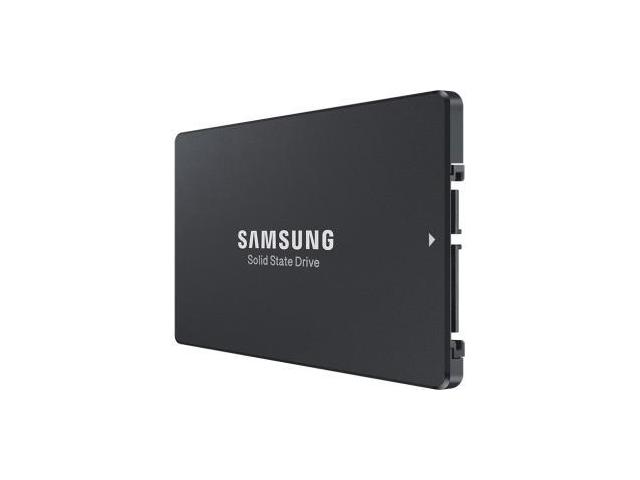
4 signs it is time for server storage upgrades
Storage technology has kept moving since this post was first written. Solid-state drives (SSD) and newer NVMe drives are now common in business servers. Many organizations still run older hard disk arrays, though. These signs suggest it may be worth reviewing your storage:
- Line-of-business applications, file shares, or databases feel slow during busy hours.
- Backups or server replication jobs run past their scheduled window.
- Drives or storage controllers are reporting errors, or the hardware is past its warranty.
- You keep running out of space and deleting files to make room.
What server storage upgrades can and cannot fix
Faster drives help when storage is the slow part. They do not fix every problem. A slow server can also come from too little memory, an old processor, a busy network, or software that needs an update. If storage is not the cause, new drives cost money and work stays slow.
That is why a short review comes first. A technician checks drive health, disk activity, free space, and warranty dates. The results show whether a server storage upgrade is the right fix or another change makes more sense.
Planning a storage upgrade
A successful upgrade starts with understanding how your data is used. Before buying hardware, we recommend:
- Measuring current usage and growth. Know how much data you store today and how fast it’s growing.
- Matching storage to workload. Busy databases and virtual servers benefit most from flash storage. Archives and older files may fit well on lower-cost tiers or in the cloud.
- Confirming backups before any change. Make sure you have a recent backup that you’ve tested, so you can restore data if something goes wrong during migration. CISA’s StopRansomware guidance explains why offline, tested backups matter.
- Scheduling the migration. Moving data after hours or in stages keeps disruption to staff low.
- Testing afterward. Check that applications, permissions, and backup jobs all work on the new storage.
On-premises, cloud, or hybrid?
Not every business needs a bigger server. For some Washington organizations, moving file shares to cloud services or using a hybrid approach is the better fit. Local storage then handles performance-sensitive work, and the cloud handles collaboration and offsite copies. The right choice depends on your applications, internet connection, compliance needs, and budget.
Questions to ask before server storage upgrades
Answer these questions before you order new drives:
- How old is the server, and is the rest of the hardware worth keeping?
- Which applications slow down first, and at what time of day?
- How much downtime can your team accept during the move?
- Where will a tested backup copy live while the data moves?
- How much room will you need three years from now?
Clear answers make server storage upgrades easier to plan and budget. They also help you avoid buying more storage than you need.
Talk to TANET about server storage upgrades
TANET helps businesses in Washington, Oregon, and Idaho assess their servers and storage, plan upgrades, and carry out migrations with as little downtime as possible. If your servers are aging or slowing your team down, contact us to talk through your options.
TANET is based in Mill Creek and Bothell, WA, and has worked with local businesses since June 2006. Call (206) 501-4337 to book a server review. You get a plain-language summary of what we find and what we recommend.
Learn more about our managed IT services in Seattle, Portland, and Boise, or contact TANET about a server review.
Table of Contents